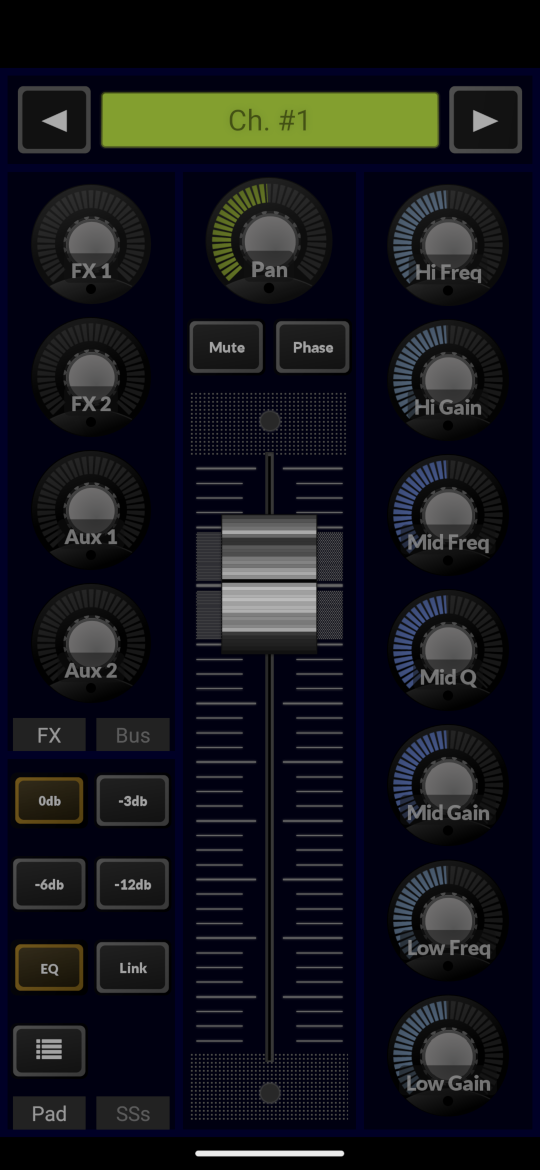
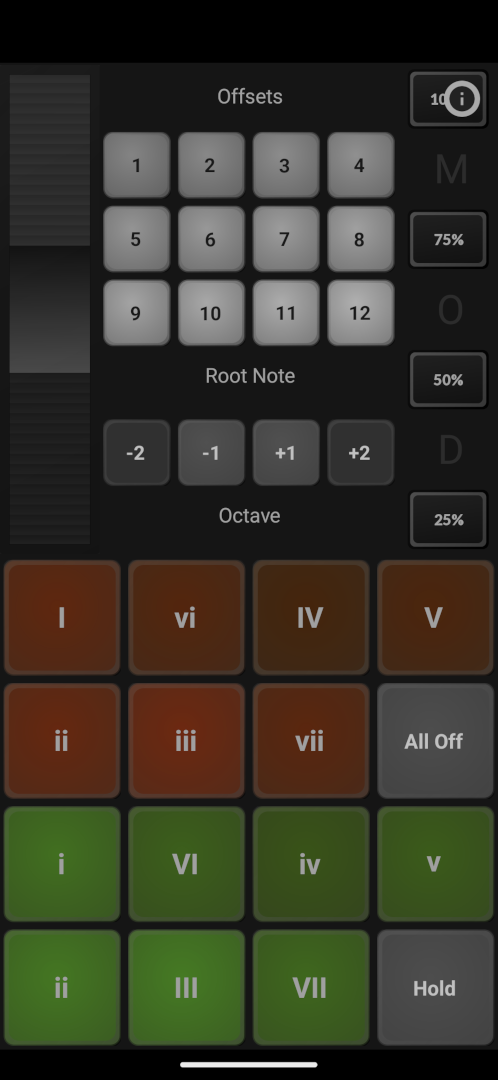
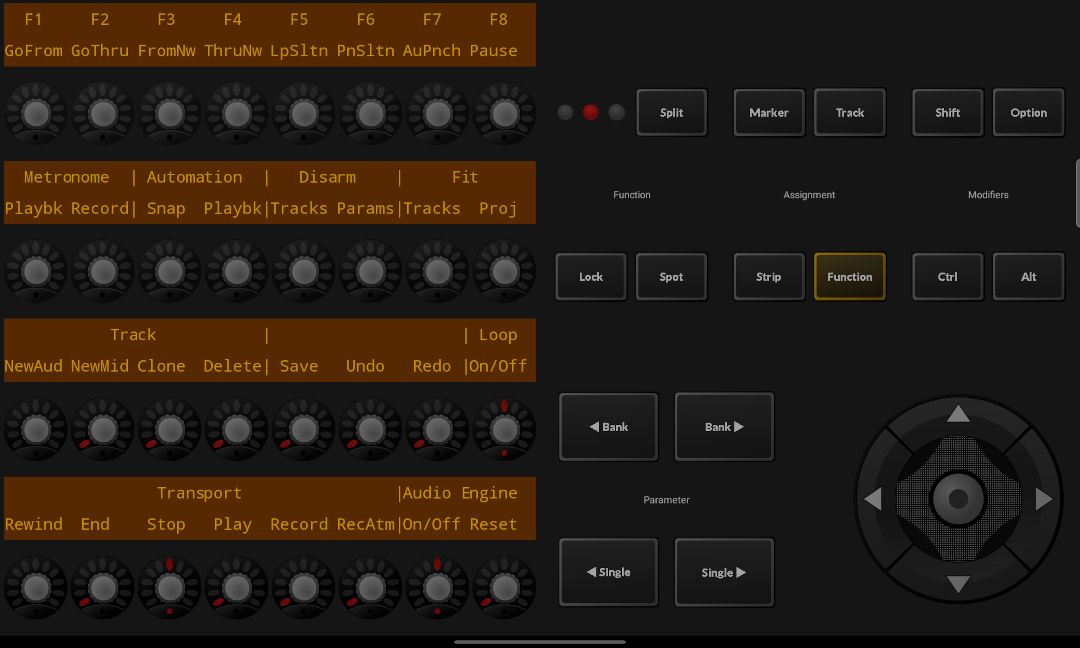
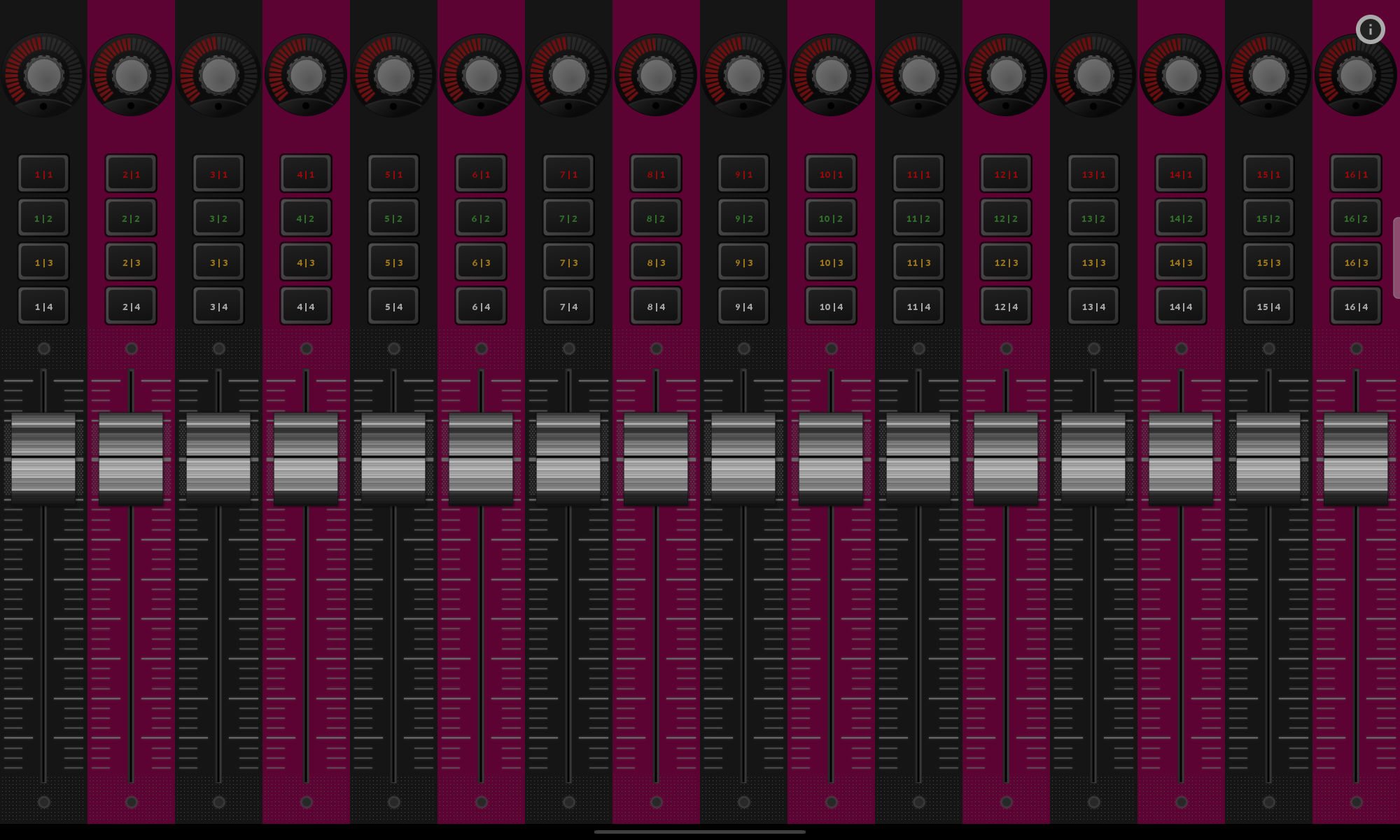
This is a simple emulation of the discontinued C4 controller. The layout is built to adapt to both landscape and portrait modes. It is better suited to tablets, but should scale to phones.
The controller uses the app's second MIDI connection. It is effectively another full-blown DAW controller, though and - per Mackie's & Apple's definition - requires a MIDI port exclusively for itself. When using it you should not use other parts of the app running over the second port (ie. the Keyboard and XY-Pads screens and the Mixer in MIDI mode) anymore, because the DAW will consider all MIDI coming in over that port as 'remote control data' and messages that are not defined in context of the protocol may in the worst case crash the DAW.
The query response option is used to make DAWs accept and activate the controller, see the xml's 'emulation' node. [
Details]
The V-Pots on the hardware can not only be rotated, but also have a press function. DAW implementations for the controller use that a lot. Like on TouchDAW's main screen you get the same functionality here by double-tapping an encoder.
Custom controllers can not run any initialization sequences so far, you may need to press some buttons in the 'Assignment' section to make the DAW send some data initially.
The original hardware was a versatile piece of gear, accompanied by its own configuration software (the 'C4 Commander') and a concept of extensibility in the background. This emulation only replicates the basic UI functions. Unfortunately the controller was never very well supported across DAW products. Basically only Logic, Cakewalk and Reason come with built-in support for the C4. Here is how a setup with these products would look like:
Logic:
There is no autodetection support for custom controllers so far, this needs to be set up manually or via scans. From the 'Logic' menu select 'Control Surfaces', click the 'New' dropdown at the top of the upcoming window, select 'Install' and choose 'Mackie Control C4' under the 'Mackie Designs' manufacturer entry. Then either use 'Add' and set the MIDI in- and outputs to the second RTP session (or whatever port you have the app's second port connected to) or try 'Scan', which should automatically set the ports if sucessful.

Logic's C4 implementation is documented in a pdf file available on
Apple's website (Chapter 15, pages 180ff.). Please do read it. None of the rather complex functionality available here has been my idea.
Cakewalk:
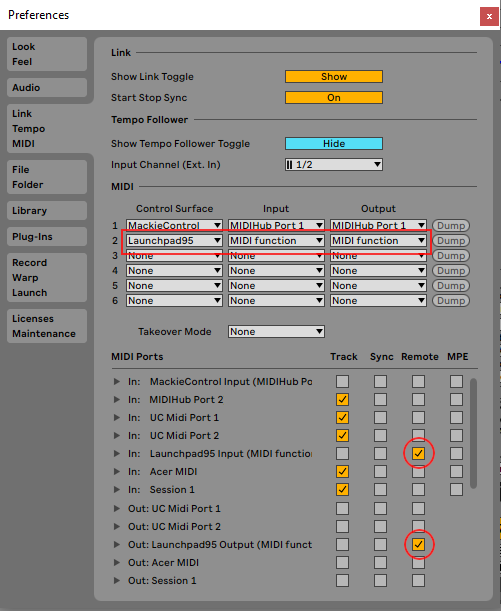
Open the DAW's preferences and select the 'Control Surfaces' tab. Click the yellow star-like icon at the top-right side, select "Mackie Control C4' from the 'Controller / Surface' dropdown, set the appropriate MIDI ports and click OK. The preferences page will look something like this then:

(Using mnet / MIDIHub here and also showing the app's regular DAW Controller part as the first control surface. This is NOT required for the D5 preset to work!).
Some buttons - or rather V-Pot press actions - can be customized via the control surface properties window that can be launched from the 'ACT' tab in Cakewalk's upper toolbar.
Please read the Cakewalk C4 documentation! All functionality available here is defined by the DAW, not by the app. Find it at 'Program Files/Cakewalk/Shared Surfaces/MackieControl.chm'.
Reason:
Open the preferences and switch to the 'Control Surfaces' tab. If the app's second MIDI port is connected you can use the 'Auto-detect surfaces' function (takes some time. Reason will send the same device inquiry message about 40 times until it reaches the 'Mackie C4' entry in its control surfaces list and accepts the return). Alternatively hit 'Add manually', select a Mackie C4 and set the correct MIDI ports. Make sure the 'Use with Reason' box is checked. Screenshot:

What the controller can do depends a lot on the Reason device it is linked to. Generally you get quite deep access to synth parameters via the v-pots. Please see the
Reason C4 documentation for details.
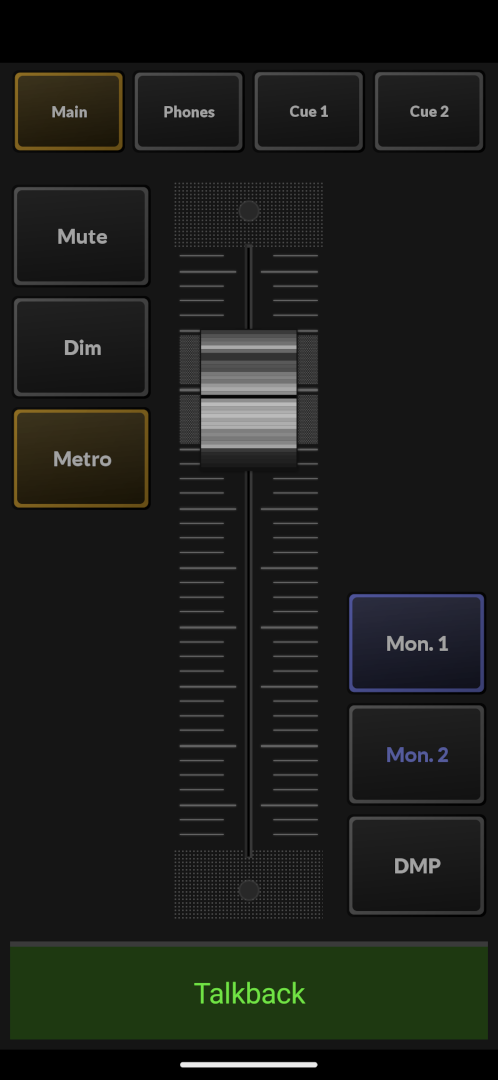

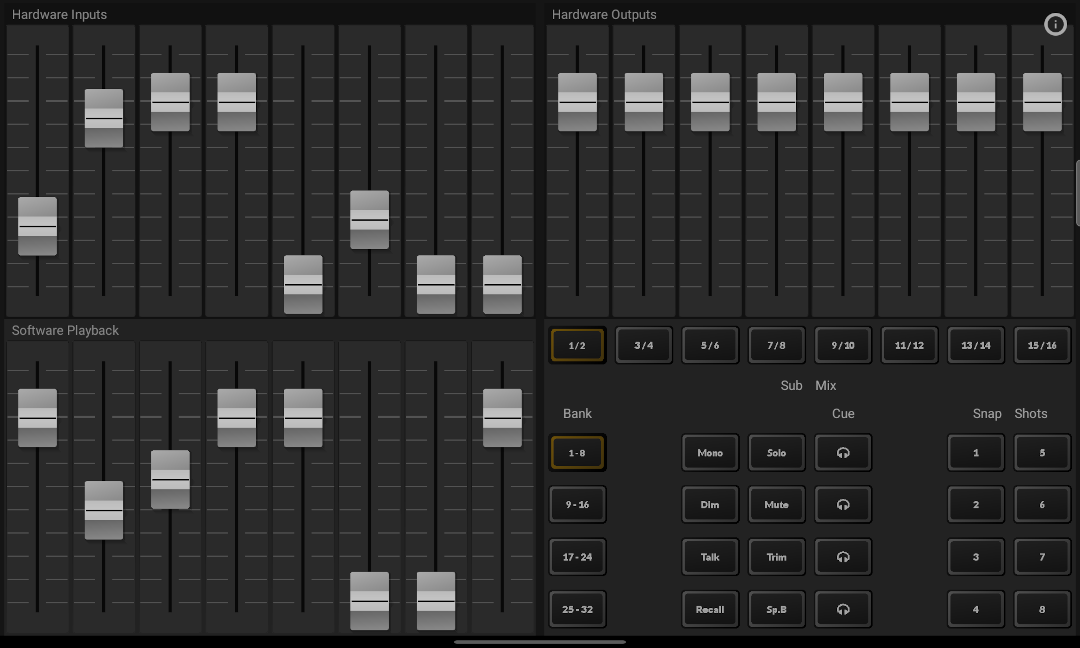
 To set this up open the Totalmix 'Settings' dialog from the 'Options' menu and select your MIDI ports on the 'MIDI' tab. Please note that Totalmix will refuse to see mnet / MIDIHub ports (because it's too cheap a MIDI driver... No support for WinMM ports here as it seems). To use this over WiFi you will need to run rtpMIDI when on Windows.